
Chat Import
AgentsView can import your conversation history from Claude.ai and ChatGPT. Both services let you export your data as a zip file — AgentsView reads these exports and adds the conversations to your local database alongside your agent coding sessions.
Exporting Your Data
Claude.ai
- Go to claude.ai/settings
- Scroll to Export Data and click Export
- Claude emails you a download link for a
.zipfile containingconversations.json
ChatGPT
- Go to chatgpt.com/settings
- Under Data controls, click Export data
- ChatGPT emails you a download link for a
.zipfile containing conversation data and any images you uploaded or generated with DALL-E
Importing via the UI
Click the Import conversations button in the header (the upload icon in the top-right area) to open the import dialog.

- Select a provider — choose Claude.ai or ChatGPT
- Upload your file
- Claude.ai: accepts
conversations.jsonor the.zipfrom your data export - ChatGPT: accepts the
.zipfrom your data export
- Claude.ai: accepts
- Click Import
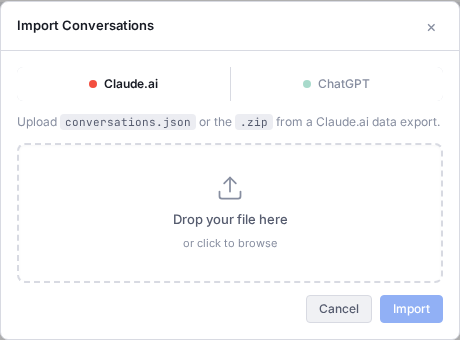
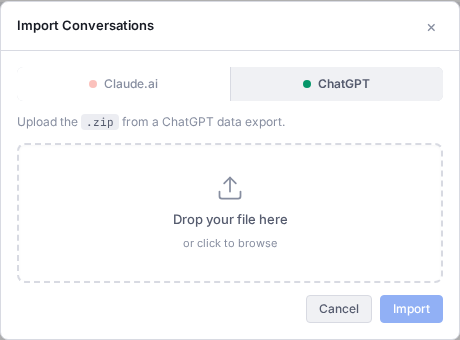
The dialog shows a summary when finished — for example, “5 conversations processed (4 new, 1 updated)”. The session list refreshes automatically.
Importing via the CLI
Use agentsview import to import from the command line:
agentsview import --type claude-ai ~/Downloads/claude-export.zipagentsview import --type chatgpt ~/Downloads/chatgpt-export.zip| Flag | Description |
|---|---|
--type | claude-ai or chatgpt (required) |
The path can be a .zip file, a conversations.json file
(Claude.ai only), or a directory containing the extracted
export.
What Gets Imported
Messages
All conversation turns are imported as sessions: user messages, assistant responses, thinking/reasoning blocks, and tool usage (code interpreter, web search, DALL-E).
Images (ChatGPT)
ChatGPT exports include images — both DALL-E generations and files you uploaded during conversations. AgentsView extracts these from the zip and stores them locally in the data assets directory. Images appear inline in the message viewer, just as they did in the original conversation.
Supported formats: PNG, JPG, JPEG, WebP, GIF.
Metadata
Each imported session includes:
- Conversation title as the session display name
- Created and updated timestamps
- Message and user message counts
- Model information (when available)
How Imported Sessions Appear
Imported conversations appear in the session list alongside your locally-tracked agent sessions. They are grouped under the claude.ai or chatgpt.com project, so you can filter to them using the project filter or browse them mixed in with your other sessions.
Imported sessions support the same features as any other session: search, export, publish to Gist, insights, pinned messages, and analytics.
Re-importing
You can safely re-import the same export file:
- Claude.ai — existing sessions are updated with any new messages. User-edited display names are preserved.
- ChatGPT — existing sessions are skipped (not re-imported), so your data stays unchanged.